
Product guide
Getting Started
How do I create a popup?
- Open Eazy Sales Booster from Shopify admin.
- Click Popups.
- Click Create Popup.
- Enter the customer-facing message or offer.
- Set the popup trigger and display settings.
- Click Save.
- Preview the popup on your storefront before activating it.
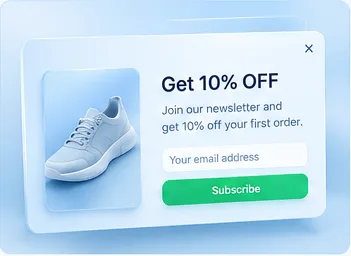
How do I collect customer emails?
- Open Eazy Sales Booster.
- Open the email collector tool.
- Click Create Email Form.
- Enter the message and offer customers should see.
- Set when and where the form should appear.
- Click Save.
- Open the storefront and submit a test email.
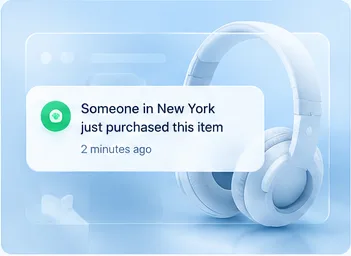
How do I create a sales notification?
- Open Eazy Sales Booster.
- Click Sales Notifications or Sales Pop.
- Click Create Notification.
- Enter the notification message and display settings.
- Select where the notification should appear.
- Click Save.
- Open the storefront and preview the notification.
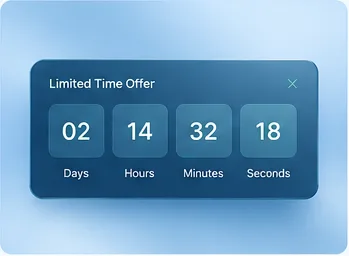
How do I add a countdown timer?
- Open Eazy Sales Booster.
- Open Countdown Timer.
- Click Create Timer.
- Set the countdown end date and time.
- Enter the customer-facing message or offer.
- Click Save.
- Preview the timer on the storefront and check the countdown.
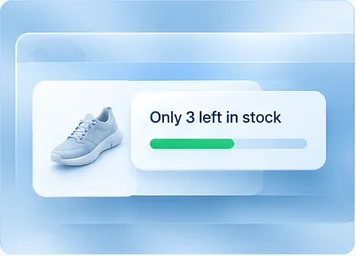
How do I show a low-stock alert?
- Open Eazy Sales Booster.
- Open Low Stock Alert.
- Click Create Alert or enable the available alert.
- Set the stock threshold that should trigger the alert.
- Enter the customer-facing message.
- Click Save.
- Test the alert with a product at the configured stock level.
How do I add an information or free-shipping bar?
- Open Eazy Sales Booster.
- Open the information bar or free-shipping bar tool.
- Click Create Bar.
- Enter the message customers should see.
- Set where and when the bar should appear.
- Click Save.
- Preview the bar on desktop and mobile before activating it.
How do I create a special offer?
- Open Eazy Sales Booster.
- Open the special offer or promotion tool.
- Click Create Offer.
- Enter the offer message and discount details.
- Set the display trigger and location.
- Click Save.
- Open the storefront and test the offer before activating it.
How do I test Sales Booster tools before launch?
- Open each active Sales Booster tool.
- Check its trigger and display location.
- Open the storefront in a private browser window.
- Trigger the popup, notification, timer, or alert.
- Check the customer-facing text and timing.
- Test on mobile.
- Activate the tool only after the storefront result is correct.
Still have a question?
Our team is here to help you turn complex product experiences into a simple customer experience.