
Product guide
Getting Started
How do I create a preorder plan?
- Open Eazy Preorders from Shopify admin.
- Click Create Preorder Plan.
- Select the product or products that should accept preorders.
- Choose the order type and fill the preorder details.
- Choose the available payment settings for the plan.
- Enter button, badge, and customer-facing text.
- Save the preorder plan and test it on the product page.
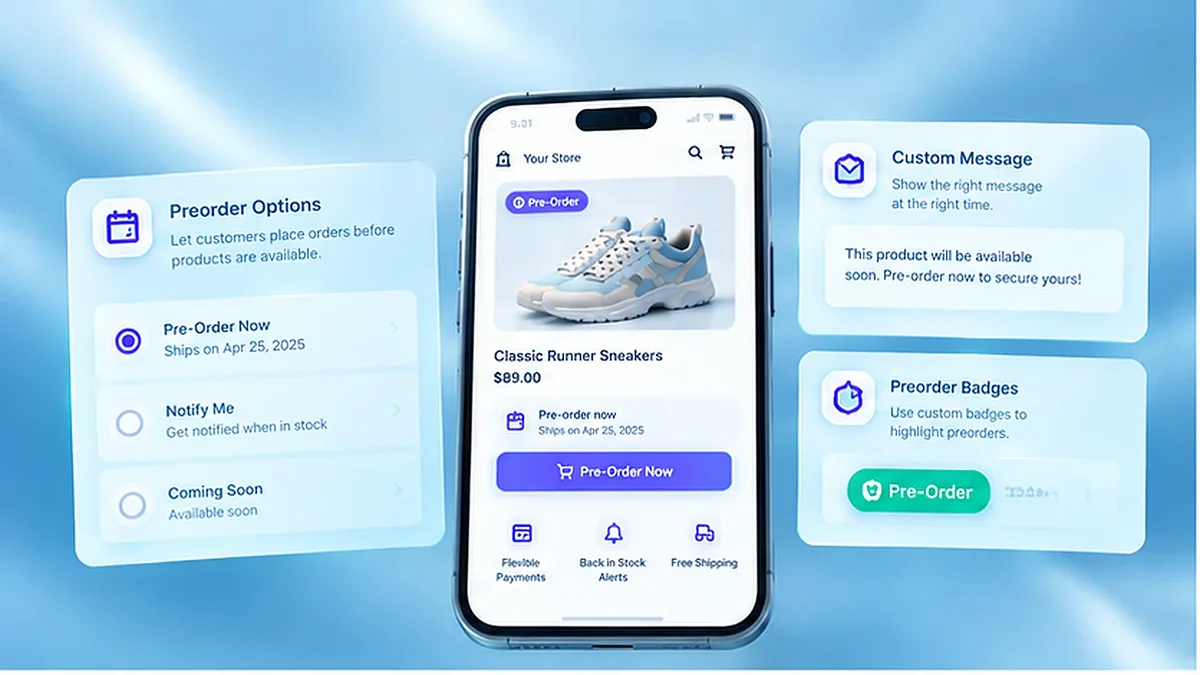
How do I choose preorder order type?
- Open the preorder plan.
- Open the order type settings.
- Choose Out of stock or Pre-sales based on when customers should be allowed to order.
- Check the products assigned to the plan.
- Save the plan.
- Open the storefront product page.
- Confirm the preorder button appears under the intended stock condition.
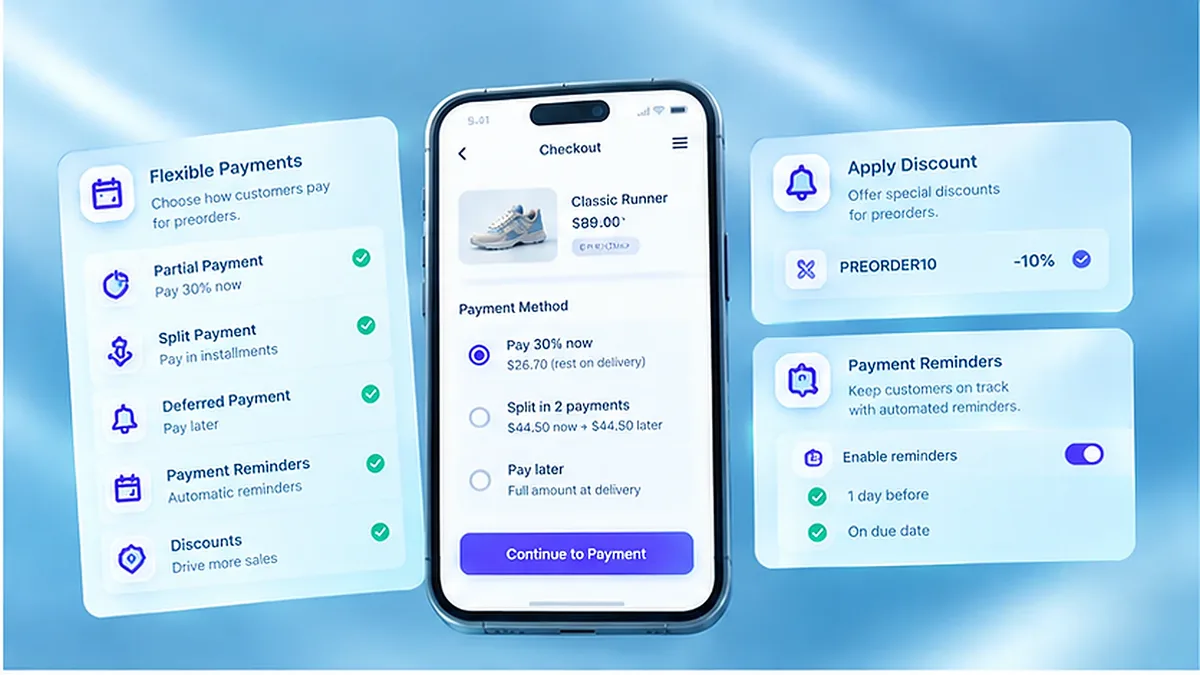
How do I set a preorder payment method?
- Open the preorder plan.
- Open the payment settings.
- Select the payment option available for your plan, such as Partial, Split, or Deferred payment.
- Configure payment reminders when available.
- Review the customer-facing payment message.
- Click Save.
- Test the preorder checkout flow.
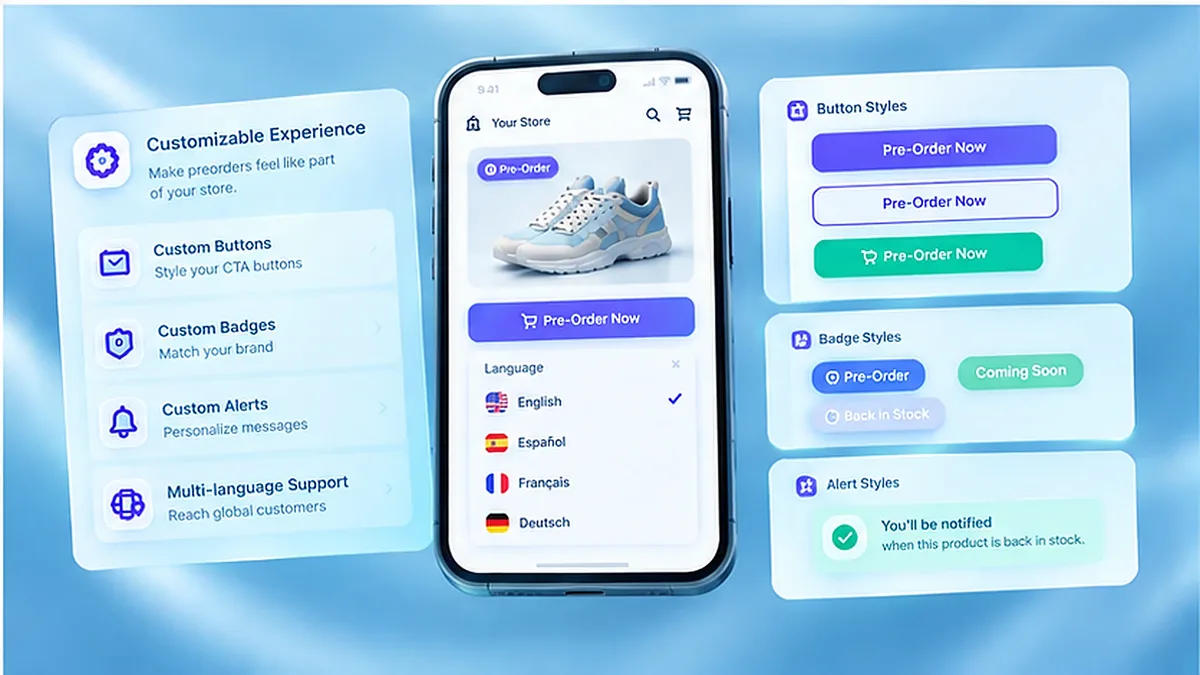
How do I customize preorder buttons and badges?
- Open the preorder plan.
- Open the design or customization settings.
- Enter the preorder button text.
- Enter the preorder badge and custom message text.
- Review the product-page presentation.
- Click Save.
- Open the storefront and check the result on desktop and mobile.
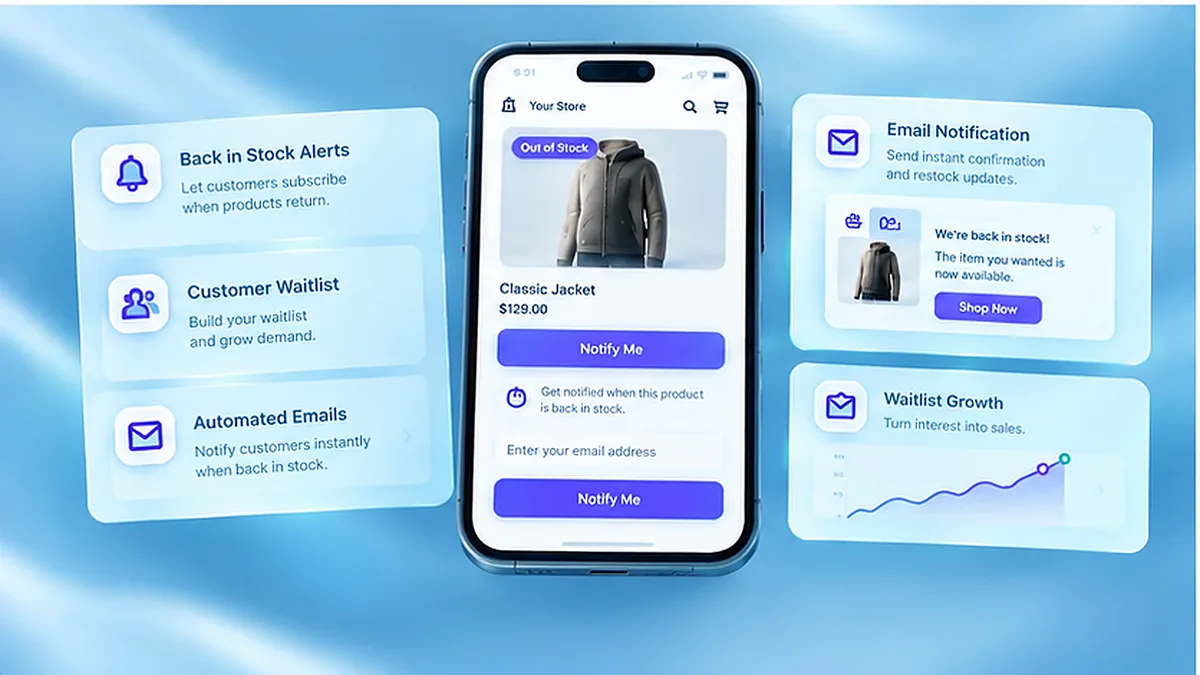
How do I enable back-in-stock alerts?
- Open Eazy Preorders.
- Open Back in Stock.
- Enable the back-in-stock alert for the products you want.
- Enter the text customers see when joining the waitlist.
- Click Save.
- Open an unavailable product on the storefront.
- Submit a test waitlist signup and check the result.
How do I send back-in-stock notifications?
- Open the back-in-stock settings.
- Open Email Notifications.
- Edit the notification subject and message fields available in the app.
- Click Save.
- Confirm a customer can join the waitlist.
- Restore stock when testing the notification flow.
- Confirm the notification is sent with the correct message.
How do I change preorder language and text?
- Open the preorder plan or translation settings.
- Open the language or translation controls.
- Select the language you want to edit.
- Enter the translated preorder messages.
- Click Save Translations when available.
- Open the storefront in that language.
- Confirm the preorder text is displayed correctly.
How do I check preorder performance?
- Open Eazy Preorders.
- Open the reports or insights area.
- Select the preorder or back-in-stock data you want to review.
- Check preorder demand and waitlist activity.
- Compare the results with the products using the plans.
- Adjust the plan or messaging when needed.
- Save the changes and monitor the next period.
Still have a question?
Our team is here to help you turn complex product experiences into a simple customer experience.