

Easy Product Options & Variants —
Technology at Work
Empower your Shopify store with limitless personalization options. From dynamic logic to multi-step flows, we bring enterprise-grade customization to every merchant.
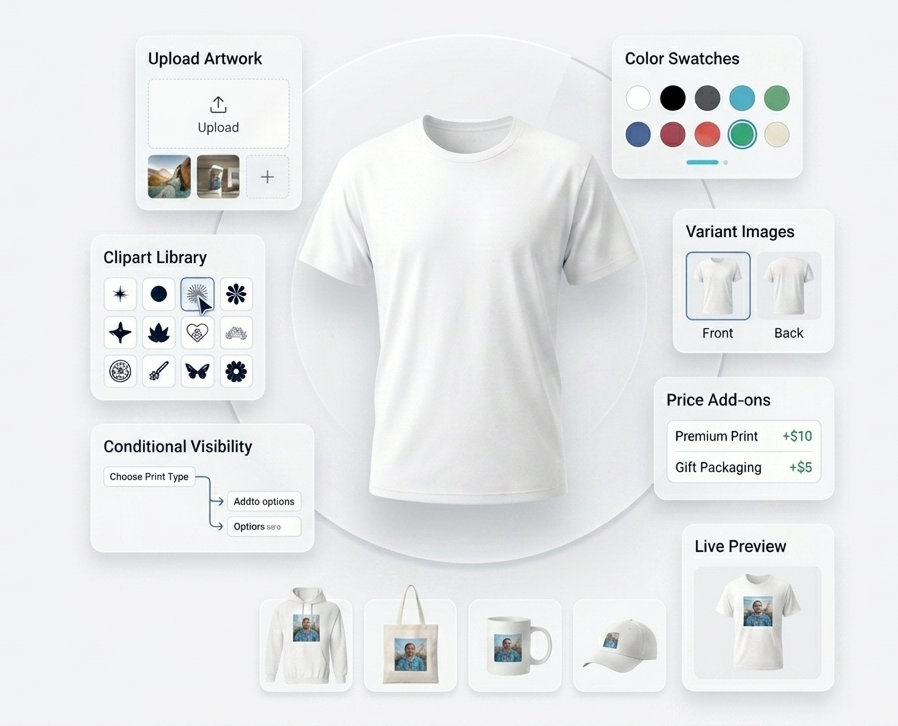
Break Shopify Limits
Surpass the 100-variant limit and create complex product configurations with ease.
Professional Design
A seamless interface that looks like it was custom-built for your brand’s unique theme.
9+ Input Types
From color swatches to file uploads, every input type you need to sell personalized items.
Dynamic Logic
Show or hide options based on previous selections using advanced conditional logic.
Go Live in Minutes
A streamlined workflow designed for high-volume merchants.
1
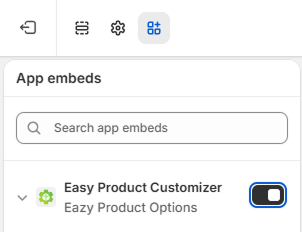
Enable in Theme
Toggle the app block in your Shopify Theme Editor. No complex code or liquid editing required.
2
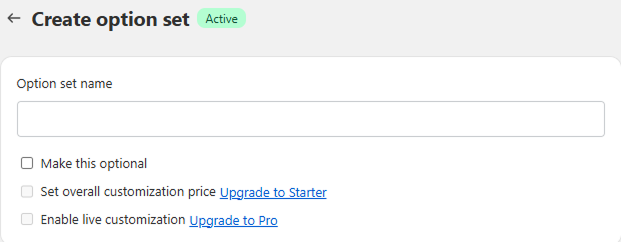
Create Option Set
Define your input types, labels, and pricing
rules in our intuitive drag-and-drop editor.
3
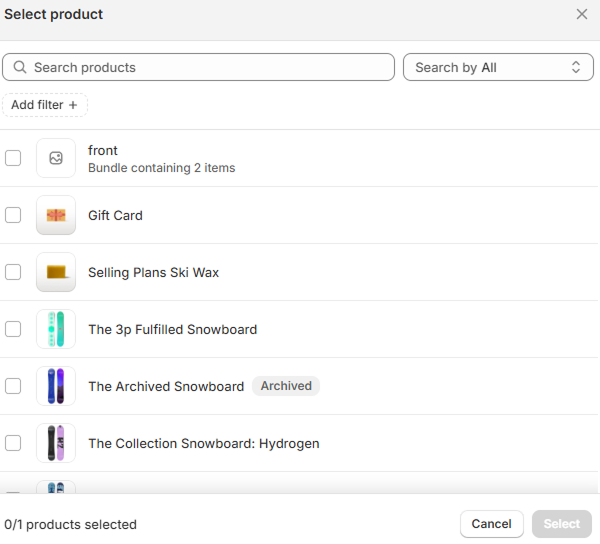
Link Products
Select specific products or apply option sets globally using tags and collections logic.
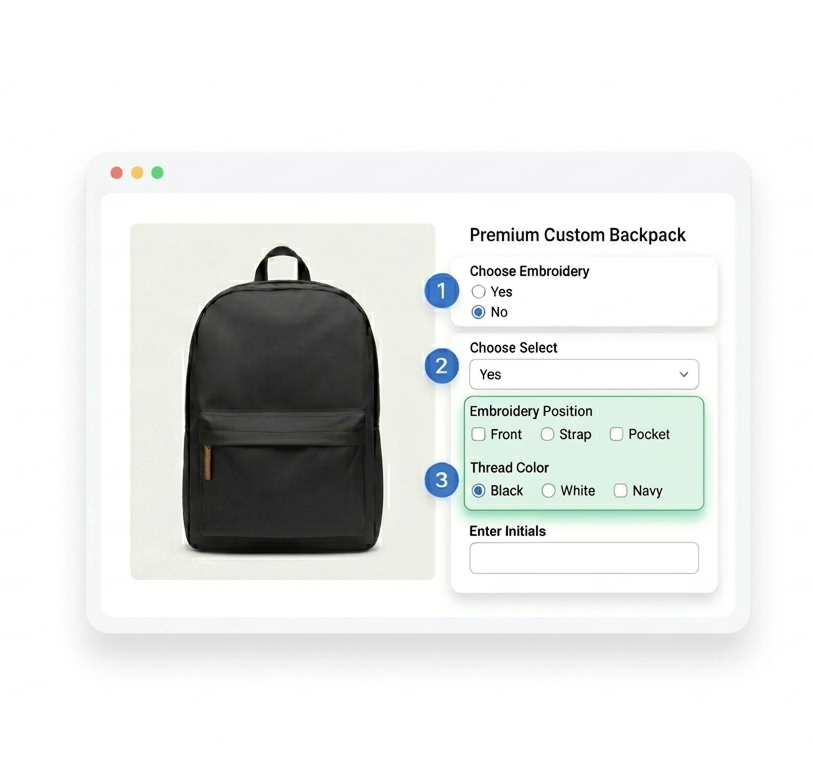
Conditional Visibility
Keep your product pages clean. Only show the relevant options when your customers need them. Set rules to reveal secondary questions based on initial choices.
-
- Unlimited rule nesting
- Fast, client-side rendering
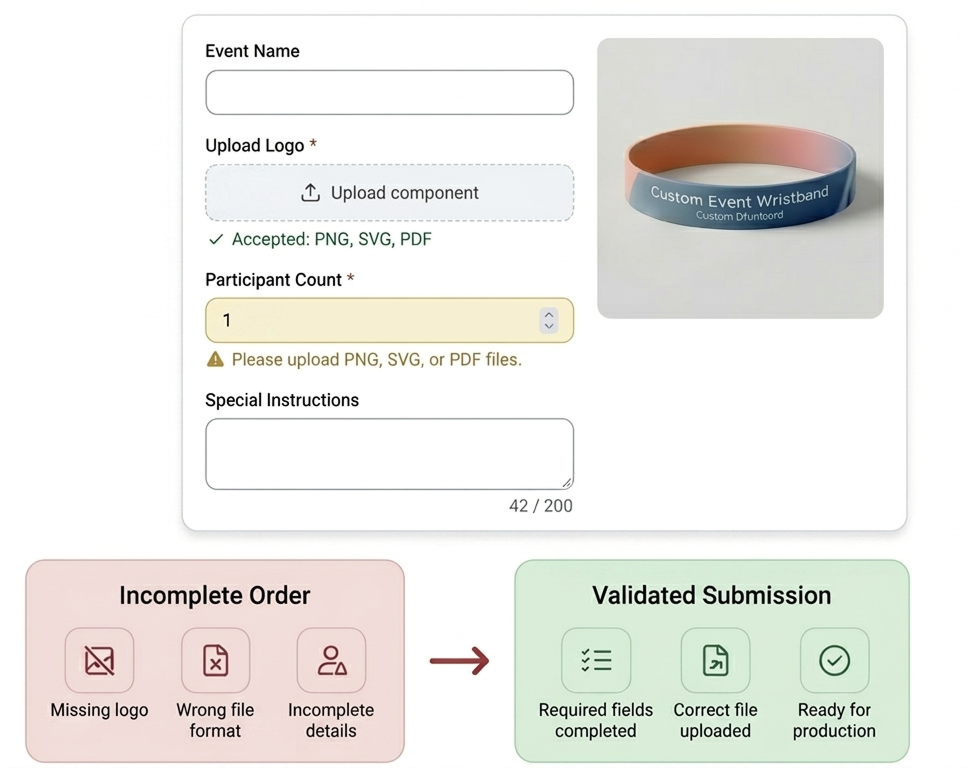
Flexible Requirements
- Ensure accuracy with mandatory fields, character limits, and specific file formats. Reduce support tickets by collecting perfect data from the start.
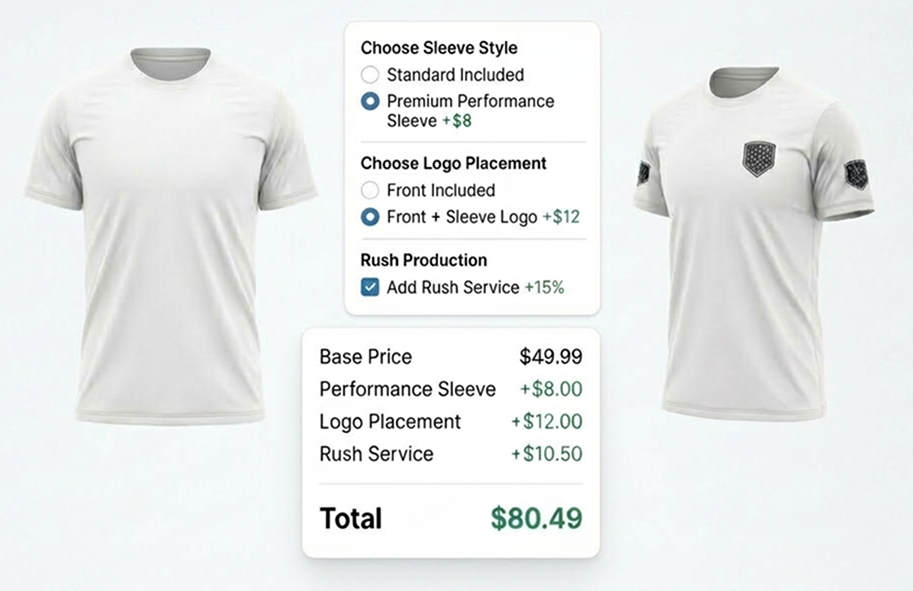
Price Add-ons
Increase your Average Order Value (AOV) by charging for specific customizations. Add flat fees or percentage-based upcharges to any option.
Unmatched Flexibility
Explore the variety of input types available out of the box.
Text Input
Text Input
Dropdown
Radio Button
Checkbox
Multi Select
Color Picker
Image Upload
Date Picker
File Upload
Built for the Shopify Ecosystem
Native integration with Shopify’s latest OS 2.0 architecture. Works seamlessly with Dawn and all premium Theme Store themes.

Loved by Shopify Merchants
“The tech agent was very helpful and respectful. It appears that my issue was caused by code issues that are going to be immediately addressed. Great app if I ever get smart enough to run it. Great job.”
“The support team responded promptly which resolved the issue after testing. Overall, great support, clear explanations, and help troubleshoot issues. Happy would recommend the app.“
“Easy Product Options and Variants has been a really helpful app for my Shopify store because it makes product customization simple and flexible without needing any coding“
Create customization options and variants options for your product with ease
Frequently Asked Questions
Everything you need to know about Eazy Product Options & Variants.
Is there any tutorial on how to use your app?
- Yes, there is a video tutorial section on the app’s home page where you’ll find the getting started video. This video will guide you on how to setup the app.
I have created an option set. How do I link it with the product?
- After you create an option set, you’ll be redirected to option sets page where you can manage all your options sets. To link a product to an option set, click on “Link products” button and select the products you want to link.
I want to make an option set appear when a customer selects certain buttons. Is it possible?
- Yes, it is possible.
- First you need to create options set or edit the existing option set
- Then go to the option that you want to hide when no button is selected
- Now click the “Set Condition” button and set the condition for that options and save it. (Note: You cannot set conditions on the first option)
I have checked the box "Enable live customization" but I can't preview my image swatch option, text option and upload file live. How to do that?
- First go back to the option set by clicking the edit button
- Then go to the image swatch option
- Now click configure live preview and save it
- It should work now. Please check the product page
- Similarly you can do the same with the text option as well as file upload option.
How to add different font options?
- Go to fonts.google.com
- Select font
- Now you can see the fonts link(url) and full name
- Enter the url and full name to the text option
- Note: Please remove previous selected to add another font from the cart of google font website.